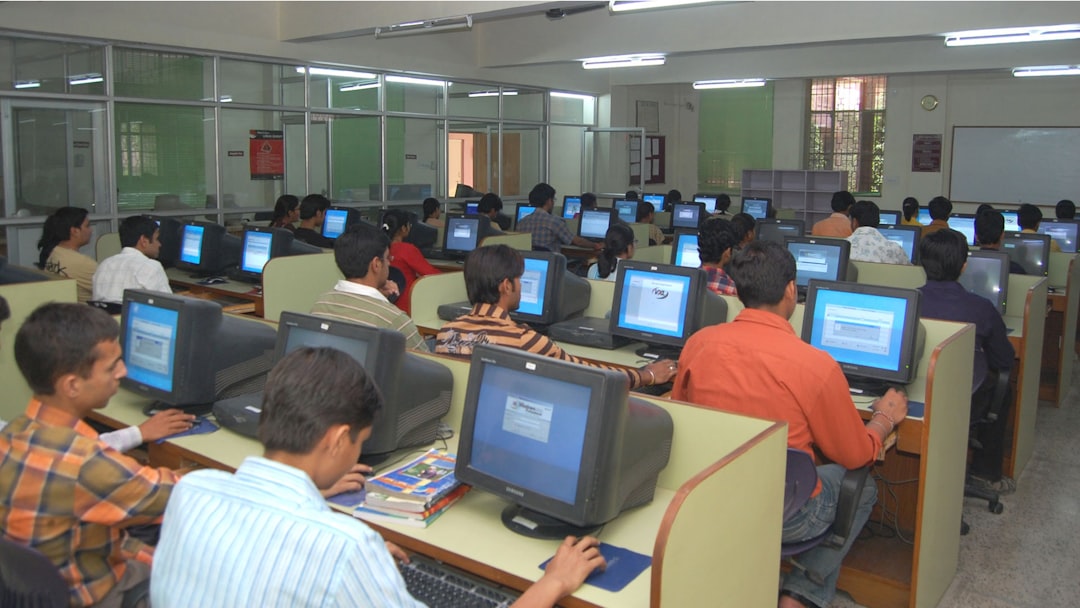


Inclusive education is a growing movement, and educators are seeking tools that allow them to deliver content to all students, regardless of physical or cognitive challenges. Presentations, a staple in classrooms and remote learning, must now go beyond mere slides. They should be accessible, screen-reader friendly, and easily exportable for offline or alternative viewing. This demand has given rise to a new generation of presentation tools that prioritize inclusivity without compromising on design and interactivity.
TLDR: This article explores seven top-tier presentation tools that support accessibility features crucial for inclusive teaching environments. These tools offer compatibility with screen readers, well-structured layouts for exporting, and customizable accessibility settings. Educators benefit by creating content that reaches every learner, including those with disabilities. The article also answers frequently asked questions on choosing the right tool for accessible slide creation.
1. Microsoft PowerPoint: The Classic with Powerful Accessibility Options
Microsoft PowerPoint, often considered the gold standard in presentation software, offers an impressive suite of accessibility features. Its built-in Accessibility Checker alerts users to issues like missing alt text and insufficient color contrast. For screen-reader users, PowerPoint intelligently structures slides using standard headings and content placeholders, enhancing compatibility with tools like Narrator and JAWS.
- Screen reader compatible: Yes (Narrator, JAWS, NVDA)
- Export-friendly: Exports to PDF and outlines with semantic structure retained
- Accessibility features: Alt-text support, keyboard navigation, reading order controls
Furthermore, PowerPoint allows teachers to save presentations as accessible PDFs that maintain logical reading order and alt tag information—critical for screen reader comprehension.

2. Google Slides: Accessible and Collaborative
Google Slides is widely used in education due to its collaborative nature and ease of sharing. Its core advantage lies in its cloud-based structure, which makes document sharing seamless. With support for screen readers including ChromeVox, JAWS, and NVDA, Google Slides is a robust choice for inclusive classrooms.
- Screen reader compatible: Strong support with Chrome browser
- Export-friendly: Slides can be exported as PDFs or plain text outlines
- Accessibility features: Voice typing, text-to-speech, keyboard shortcuts
Google continuously updates its accessibility offerings. It allows users to check the reading order visually, and its integration with other tools like Google Docs enhances its flexibility for inclusive lesson planning.
3. Apple Keynote: Sleek Design Meets Accessibility
Known for aesthetically polished slides, Apple Keynote doesn’t lag behind in the accessibility department. It supports the macOS VoiceOver screen reader, enabling visually impaired users to navigate and read slide content efficiently.
- Screen reader compatible: Fully compatible with VoiceOver
- Export-friendly: Exports include accessible PDFs and PowerPoint formats with tags
- Accessibility features: Closed captioning support, alt text options, built-in templates ensuring contrast
Thanks to Apple’s ecosystem-wide focus on accessibility, Keynote performs well in educational settings where macOS or iOS devices are standard. Users can also add captions directly to audio and video elements—ideal for multimedia learning content.

4. Canva Presentations: Accessible Design for Visual Learners
Canva is increasingly being used in classrooms for visual communication. While it’s known for its drag-and-drop simplicity, Canva has made strides in accessibility. It offers screen reader compatibility and strong color contrast awareness built right into its templates.
- Screen reader compatible: Basic support; best with Chrome and NVDA
- Export-friendly: Presentations exportable as PDFs with preserved visual structure
- Accessibility features: Color contrast warnings, accessible templates, text hierarchy tools
Although not as advanced as others in this list, its auto-save and cloud collaboration options make it ideal for group projects. Canva continues to roll out updates aimed at improving navigation for keyboard and screen reader users.
5. Prezi: Interactive and Zoomable Alternative
Prezi redefines presentations by offering zoomable user interfaces instead of traditional slide decks. While more dynamic in structure, Prezi has worked to strengthen its accessibility game by ensuring navigation and readability improvements for special needs students.
- Screen reader compatible: Moderate; enhanced experience with linear export
- Export-friendly: Can export to PDFs in structured sequence
- Accessibility features: Keyboard navigation, linear viewing mode, contrast control
Its unique zoom feature can be useful for neurodiverse learners who benefit from non-linear information flow. With recent AI-powered assistants, slide hierarchy and alt-text elements have become easier to manage.
6. Slidesgo + Google Slides: Templates Built for Accessibility
Slidesgo offers hundreds of pre-designed templates that plug directly into Google Slides (or PowerPoint). What sets it apart is a growing repository of ADA-compliant and WCAG-aligned designs. These templates ensure accessibility from the get-go, reducing the burden on educators to make after-the-fact corrections.
- Screen reader compatible: Inherits Google Slides compatibility
- Export-friendly: Templates maintain layout hierarchy across formats
- Accessibility features: Templates built with readability, contrast, and structure in mind
While Slidesgo doesn’t function as a standalone editor, its value lies in the commitment to inclusive designs. Educators can quickly select ready-made slides with color contrast checks, clear headings, and readable fonts.
7. Haiku Deck: Simplicity Meets Screen Reader Logic
Haiku Deck focuses on minimalistic and impactful presentations. While it does not have every advanced accessibility feature, it excels in its semantic structure. Slides come with fixed layouts that naturally guide screen readers in the correct order.
- Screen reader compatible: High compatibility due to minimalism
- Export-friendly: Easy PDF exports with predictable structure
- Accessibility features: Fixed reading order, high-contrast font choices, and limited distractions
It’s a favorite among time-strapped educators seeking accessible slide design without complex formatting. Plus, its clean aesthetic reduces cognitive load and is beneficial for students with learning disabilities.
Conclusion
Accessibility in education should no longer be considered optional. Today’s presentation tools are evolving to meet the needs of all learners, from visually impaired students to those who rely on keyboard navigation or alternative formats. Whether it’s traditional tools like PowerPoint and Google Slides or visually dynamic options like Prezi and Canva, educators now have a variety of choices to match their teaching style with inclusive best practices.
Frequently Asked Questions (FAQ)
- Q: Which presentation tool is the most comprehensive for accessibility?
A: Microsoft PowerPoint currently leads in comprehensive features, including an accessibility checker, structured exports, and advanced screen reader compatibility. - Q: Can I use free tools for accessible presentations?
A: Yes. Google Slides and Canva both offer free tiers with solid accessibility support. Google Slides integrates especially well with screen readers and keyboard navigation tools. - Q: Which tool is best for collaborative accessible presentation building?
A: Google Slides is the most collaborative, offering real-time editing, commenting, and accessibility improvements for shared documents. - Q: Is it necessary to use alt text on every slide?
A: Absolutely. Alt text allows screen readers to accurately interpret images and is a key requirement under most accessibility guidelines like WCAG and Section 508. - Q: How can I test the accessibility of my slides?
A: Most tools like PowerPoint and Google Slides offer built-in accessibility checkers. Additionally, screen readers such as NVDA or JAWS can help you preview how content is experienced by users with disabilities.