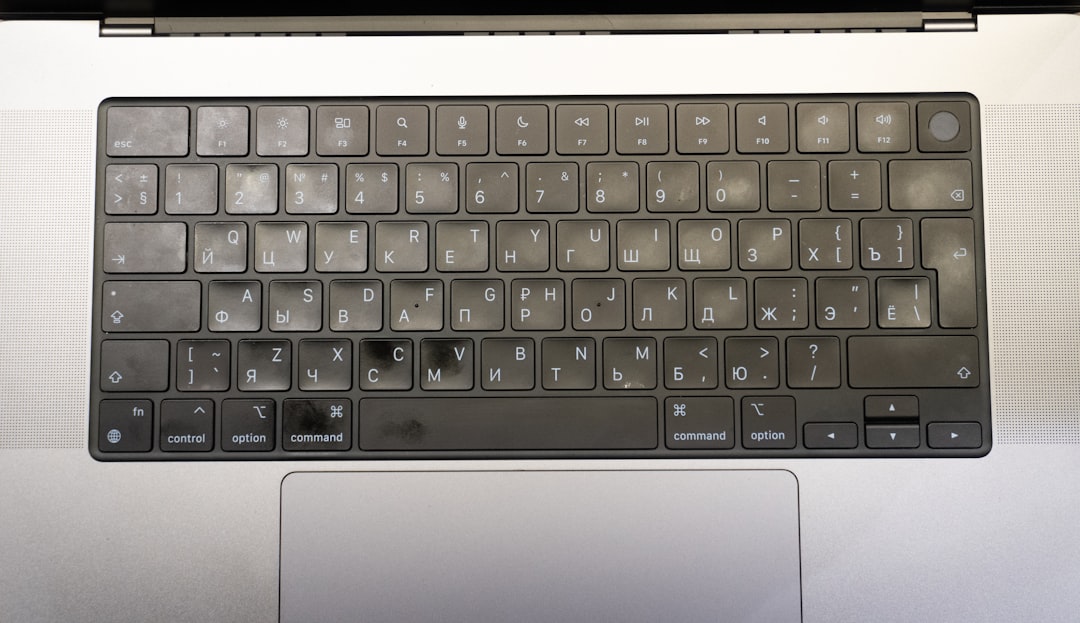


Have you ever needed to type the micro symbol (µ) and found yourself hitting every key on your keyboard in frustration? Whether you’re a student writing a science report, an engineer documenting measurements, or just a curious typist, knowing how to insert the micro sign quickly can save time and improve your writing precision. Being just one letter but with extensive use in scientific and technical contexts, the micro symbol deserves a spot in your typing toolkit.
TL;DR
The micro symbol (µ) is commonly used in scientific and engineering contexts to denote “micro”, meaning one-millionth. You can type it on a Windows computer by using the Alt code Alt + 0181, or on a Mac by pressing Option + M. On mobile devices, you’ll find it in the special characters or Greek letter set. Alternatively, you can always copy and paste it: µ.
What is the Micro Symbol?
The micro symbol (µ) originates from the Greek letter “mu” and is primarily used as a prefix in the metric system to represent factors of 10-6, or one-millionth. For example, in scientific units, you might see:
- µm – micrometer
- µg – microgram
- µA – microampere
Its practical use is widespread in fields such as physics, biology, medicine, and electronics. So if the micro symbol keeps coming up in your work, it’s useful to learn how to type it on various devices.
Typing the Micro Symbol on Different Devices
1. On Windows
Windows offers a few options to type the micro symbol:
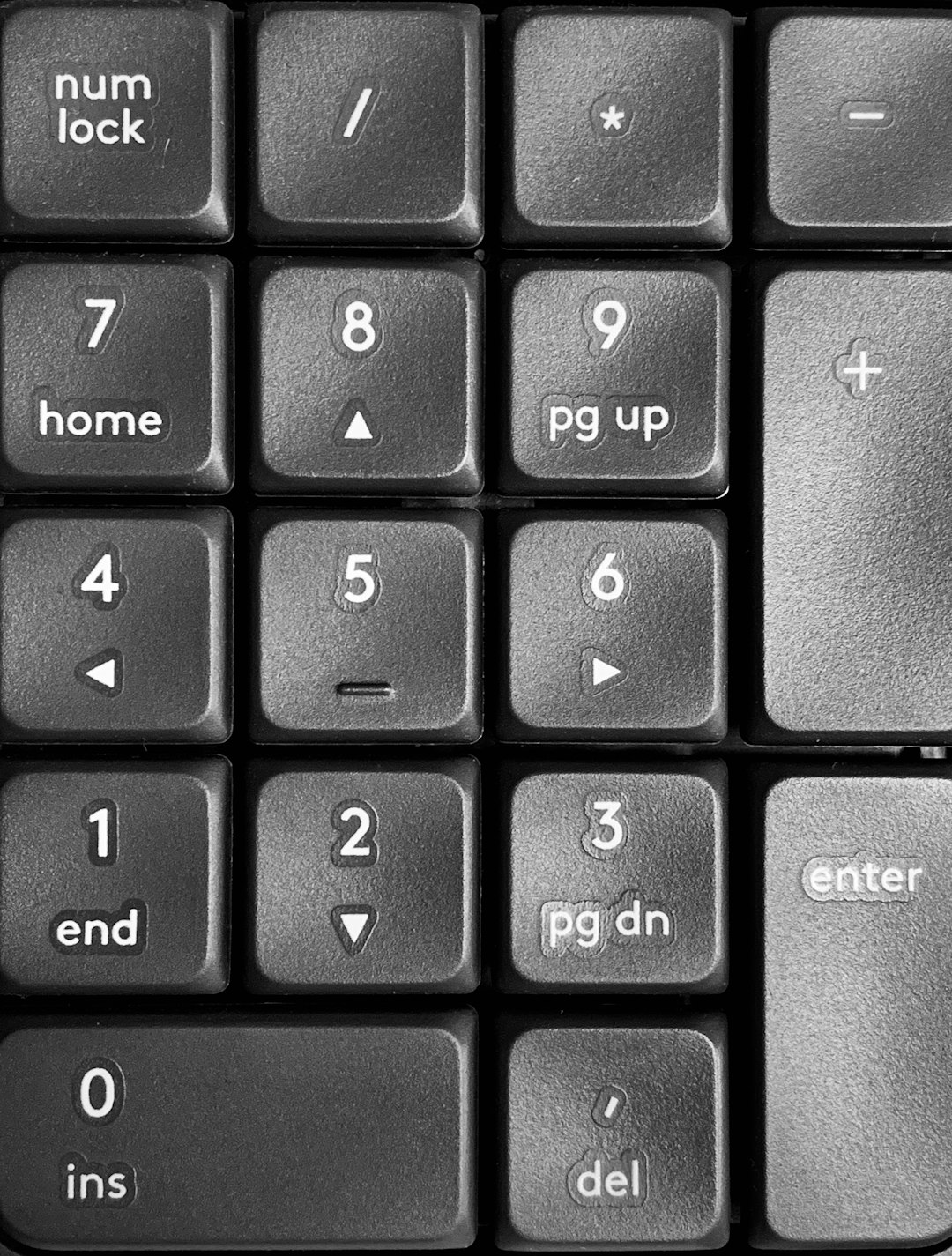
- Alt Code: Hold down the Alt key and type 0181 on your numeric keypad. Don’t forget to turn Num Lock on!
- Character Map: Search for and open the “Character Map” app. From there, find and select µ, then click “Copy” to paste it into your document.
- Keyboard Shortcut Alternative: In Microsoft Word, type 03bc and then press Alt + X to convert it into µ. This works in Word and other programs that support Unicode.
2. On macOS
Typing the micro symbol on a Mac is even simpler:
- Keyboard Shortcut: Press Option + M and voilà – µ appears instantly.
macOS also provides access to a wide range of special characters through its Character Viewer tool:
- Go to the menu bar and select Edit > Emoji & Symbols or press Control + Command + Space.
- Search for “micro” or “Greek” to locate µ.
3. On Linux
Typing special characters on Linux can vary depending on your desktop environment, but here are the most common methods:
- Unicode Entry: Press Ctrl + Shift + U, release, then type 03BC and press Enter or Space.
- Compose Key: If set up, you can type Compose followed by m and u.
4. On Mobile Devices
Typing µ on smartphones and tablets is largely dependent on your keyboard app:
- iPhone/iPad: Long-press the “m” key on the default keyboard to see if µ appears as an option. If not, you may need to switch to a Greek keyboard from the settings.
- Android: Depending on the keyboard (like Gboard), long-press “u” or “m” to see µ. Alternatively, go into Symbols or select a Greek keyboard layout.
It’s not always intuitive, so if you use it often, consider copying and storing it in a note or text-expansion shortcut.

Using AutoCorrect and Shortcuts
If typing µ frequently is part of your daily tasks, take advantage of built-in shortcut features in your operating system or software:
Microsoft Word / Office
You can create an AutoCorrect entry:
- Go to File > Options > Proofing > AutoCorrect Options.
- In the “Replace” box, type a shortcut like .micro.
- In the “With” box, paste the µ symbol.
Now, every time you type .micro, Word will automatically replace it with µ.
Text Expansion on macOS
macOS has a robust text replacement system:
- Go to System Settings > Keyboard > Text Replacements.
- Click the plus button and add a shortcut like mu and paste µ into the “With” field.
Third-Party Apps
Apps like PhraseExpress (Windows) or TextExpander (Mac) can help automate the process across all applications for even more productivity.
Unicode vs. Symbol Font Confusion
It’s worth noting that you may come across different types of “mu” that visually appear similar but behave differently in programs. For instance:
- µ (U+00B5): This is the “micro sign” used in metric units.
- μ (U+03BC): This is the Greek lowercase letter “mu.”
Although they look nearly identical, they serve different functions in Unicode encoding. Most modern systems use the U+00B5 version for metric units. Be cautious when copying between documents to avoid strange formatting or display issues!
Copy-Paste as a Last Resort
If all else fails or if you just need the symbol once in a while, the easiest solution is simply copying it from here and pasting it where needed:
µ
To make life easier, add it to a text file or sticky note for quick reuse.
Fun Trivia: Micro in Everyday Life
Aside from scientific notation, the micro symbol pops up in everyday uses more than you might think:
- Data sizes – e.g., µs (microseconds) in computing and gaming latency measurements.
- Product packaging – nutrient concentrations or allergens sometimes mention µg.
- Streaming and sensor tech – µm is crucial in describing image resolution and sensor sensitivity.
Understanding and using µ accurately gives your writing a polished and professional touch, especially in technical fields.

Conclusion
Typing the µ symbol doesn’t have to be a mystery or a hassle. From Alt codes and Mac shortcuts to mobile workarounds and text replacement tricks, there are multiple convenient ways to incorporate this essential symbol into your writing. Whether you’re tracking microseconds in code or labeling microliters in an experiment, knowing how to type µ efficiently is a small skill with big impact. Go ahead and give it a try — your keyboard is more powerful than you think!