

Few things are more frustrating for PC gamers than a system that crashes right after closing a game. Everything seems to run fine during gameplay, but the moment the game exits to desktop, the screen freezes, goes black, or the system restarts entirely. This issue can feel random and unpredictable, but in most cases, it is caused by underlying driver conflicts, overheating, memory instability, or software incompatibilities.
TLDR: If a PC crashes after closing games, the most common causes include outdated graphics drivers, unstable RAM, overheating components, or background software conflicts. Updating drivers, checking system temperatures, disabling overlays, and running hardware diagnostics often solves the issue. In more persistent cases, adjusting power settings, verifying game files, or reinstalling GPU drivers may be necessary. Identifying the root cause requires a systematic troubleshooting approach.
Understanding why crashes happen specifically after closing a game is key. When a game shuts down, the system reallocates memory, resets GPU states, and transitions from high performance to idle resource usage. If something goes wrong during that transition, instability may occur.
Why Does a PC Crash After Closing a Game?
When gameplay is active, the GPU and CPU are under load. Once the game closes, the system rapidly shifts power states, frees VRAM, and disengages intensive processes. This transitional state can expose hidden issues, including:
- Graphics driver conflicts
- Faulty or unstable RAM
- Overheating components cooling too quickly or too slowly
- Corrupted game files
- Background overlay software conflicts
- Power supply instability
Identifying which category applies requires a step-by-step investigation.
1. Update or Reinstall Graphics Drivers
Graphics drivers are the most common culprit. A corrupted or outdated driver may function during gameplay but fail when resetting display states.
Instead of simply updating, consider performing a clean installation:
- Download the latest driver from the GPU manufacturer’s official website.
- Use a driver removal utility to uninstall the current GPU driver completely.
- Restart the PC.
- Install the new driver fresh.
This removes leftover files that can cause instability.
Tip: Avoid installing optional beta drivers unless troubleshooting a known issue.
2. Disable Overlays and Background Software
Many crashes occur due to overlay software interacting with the GPU during shutdown. Common examples include:
- Game launchers with overlay features
- Voice chat overlays
- Performance monitoring tools
- RGB control applications
These tools hook into rendering pipelines. When the game closes and the graphics context resets, conflicts may cause system instability.
To test this:
- Disable all overlays temporarily.
- Close background monitoring utilities.
- Restart the computer and attempt to reproduce the issue.
If crashes stop, re-enable programs one at a time to identify the culprit.
3. Check for Overheating or Cooling Instability
It may seem counterintuitive, but temperature shifts during shutdown can expose cooling problems. When a game closes, fans ramp down and voltage changes. If cooling systems are dusty or poorly configured, instability can result.
Check the following:
- CPU temperatures
- GPU temperatures
- Fan curves in BIOS or software
- Dust buildup inside the case
Cleaning the interior and ensuring airflow is unobstructed can make a significant difference.
4. Test RAM for Instability
Faulty or unstable RAM often causes crashes during memory reallocation. When a game closes and releases large amounts of allocated memory, defective RAM modules may trigger errors.
Run a memory diagnostic tool:
- Use the built-in Windows Memory Diagnostic.
- Run a more thorough third-party RAM test utility.
If XMP or memory overclocking is enabled in BIOS, try disabling it temporarily. Overclocked RAM that appears stable during gameplay can sometimes fail under transitional loads.
5. Adjust Power Plan and GPU Power Settings
Power state transitions are another common trigger. Modern GPUs and CPUs dynamically shift voltage and frequency based on demand. When the system switches from high-performance gaming mode to idle, instability can occur.
Try these adjustments:
- Set Windows power plan to Balanced or High Performance.
- Disable aggressive CPU minimum state values.
- In the GPU control panel, set power management mode to Normal or Adaptive.
Testing different combinations can stabilize transitions.
6. Verify Game Files or Reinstall the Game
Sometimes the issue is not system-wide but game-specific. Corrupted shutdown scripts or faulty updates may cause crashes during exit.
Steps to try:
- Verify game file integrity via the game launcher.
- Reinstall the problematic game.
- Check for patches or updates.
If multiple games cause crashes, the problem is likely system-wide rather than game-specific.
7. Check Event Viewer for Error Logs
Windows Event Viewer provides valuable crash data:
- Open Event Viewer.
- Navigate to Windows Logs > System.
- Look for critical errors at the time of the crash.
Error messages referencing graphics drivers, memory faults, or kernel power failures can narrow down the source of the issue.
8. Scan for System File Corruption
Corrupt system files occasionally lead to shutdown instability. Running built-in repair tools can fix underlying problems.
- Run System File Checker.
- Use a system image repair command if needed.
These scans repair corrupted Windows components that may interfere with driver transitions.
9. Compare Useful Diagnostic Tools
The following tools can help isolate the cause of crashes:
| Tool | Purpose | Best For | Difficulty |
|---|---|---|---|
| GPU Driver Utility | Removes graphics drivers completely | Driver corruption | Moderate |
| Windows Memory Diagnostic | Tests system RAM | Memory instability | Easy |
| Hardware Monitoring Software | Tracks CPU and GPU temperatures | Overheating issues | Easy |
| Event Viewer | Identifies system level errors | Crash analysis | Moderate |
| System File Checker | Repairs corrupted system files | OS corruption | Easy |
Using a combination of these tools typically reveals the underlying cause.
10. Consider Power Supply Issues
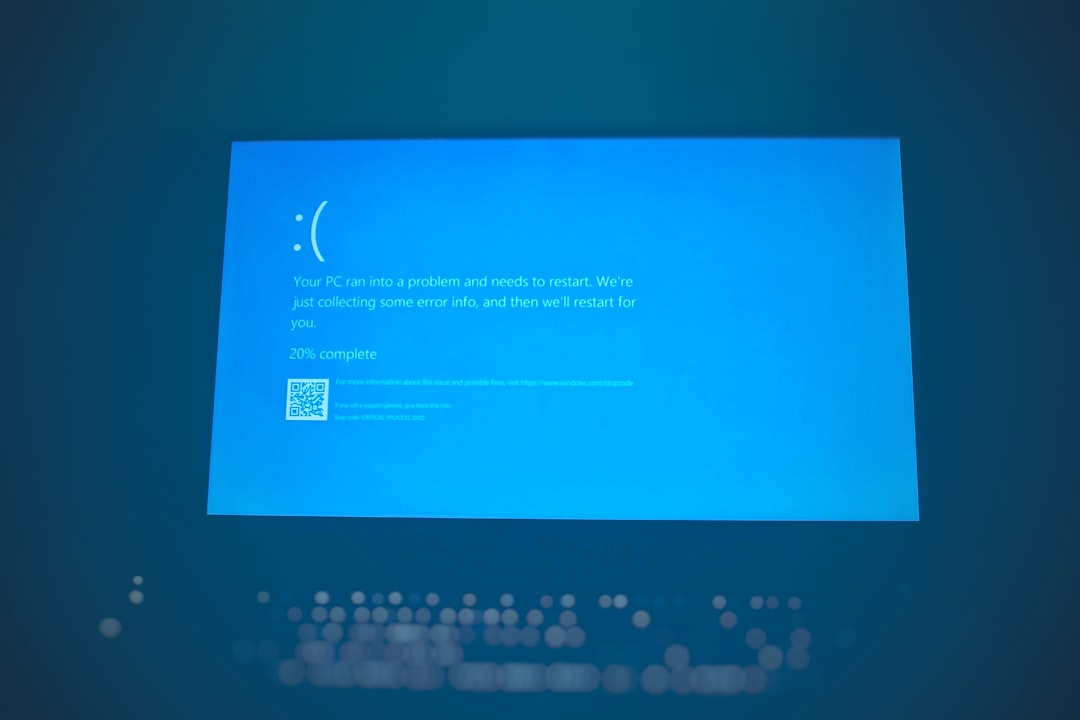
If crashes include sudden restarts or black screens, the power supply may not be delivering stable voltage during load transitions.
Signs of PSU problems include:
- Random restarts
- System shutting off instantly
- Inconsistent boot behavior
Testing with another known working power supply can confirm or rule out this issue.
When to Consider a Fresh Windows Installation
If every troubleshooting method fails, a clean Windows installation may resolve deep software conflicts. However, this should be a last resort after eliminating hardware instability.
Before reinstalling:
- Back up all important files.
- Ensure drivers and updates are ready.
- Disconnect non-essential hardware during installation.
Preventing Future Crashes
Once the issue is resolved, maintaining system stability is crucial. Recommended habits include:
- Keeping drivers updated but avoiding unnecessary beta releases
- Cleaning dust from the PC every few months
- Avoiding aggressive overclocking
- Monitoring temperatures regularly
- Installing updates from trusted sources only
A stable system configuration often prevents post-game crashes from returning.
Frequently Asked Questions (FAQ)
Why does my PC only crash after I close games and not while playing?
Crashes during game shutdown are often caused by driver transitions, memory reallocation, or power state changes. The system may appear stable under load but fail during the rapid shift to idle states.
Can faulty RAM cause crashes only during game exit?
Yes. When a game closes, large amounts of memory are freed. If RAM is unstable or faulty, that transition can trigger system errors.
Is reinstalling Windows necessary?
Not usually. Most issues are resolved through driver updates, disabling overlays, repairing system files, or correcting hardware instability. Reinstalling Windows should be a last step.
Do overlays really cause crashes?
Yes. Overlay software hooks into the graphics pipeline and can conflict during display resets when closing a game.
Could my power supply be the cause?
If crashes involve sudden restarts or black screens, unstable power delivery may be responsible. Testing with a different PSU can confirm this.
Should I disable XMP if my PC crashes?
If troubleshooting RAM instability, temporarily disabling XMP can help determine whether memory overclocking is the issue.
Crashes after closing games can feel mysterious, but they rarely happen without cause. By systematically checking drivers, memory, temperatures, power settings, and system logs, most users can resolve the issue without replacing hardware. A structured troubleshooting approach turns what seems like a random annoyance into a fixable technical problem.