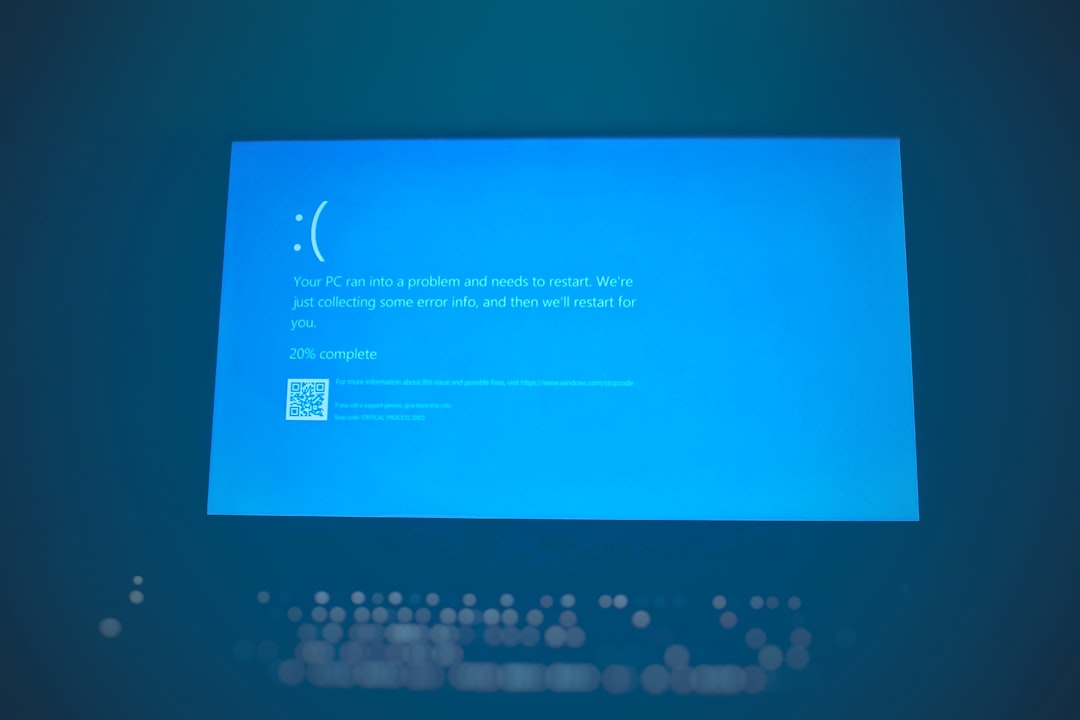


When Windows displays an Autopilot.dll error, it often alarms users with warnings about missing files, corrupted system components, or failed startup processes. Because DLL files are closely tied to the operating system’s functionality, any related error should be treated with caution. Fortunately, in most cases, this issue can be diagnosed and resolved safely with the right approach.
TLDR: The Autopilot.dll error in Windows is usually linked to corrupted system files, incomplete updates, or malware interference. It can cause system instability, startup failures, or application crashes. Most cases can be resolved by running System File Checker, repairing Windows updates, or performing a system restore. Avoid downloading DLL files from third-party websites, as this can further compromise system security.
Understanding What Autopilot.dll Does
The Autopilot.dll file is part of Microsoft Windows and is typically associated with Windows Autopilot, a deployment and configuration technology designed primarily for business and enterprise environments. Windows Autopilot helps IT departments configure new devices without direct physical interaction, streamlining setup and enrollment into organizational systems.
Although home users do not directly interact with Windows Autopilot, the underlying DLL file may still exist as part of the operating system. When Windows reports an error involving this file, it generally means one of the following:
- The file is missing or corrupted.
- A Windows update did not complete successfully.
- System files have been altered unexpectedly.
- Malware has tampered with system components.
Understanding the potential causes is the first step toward safe and effective resolution.
Common Autopilot.dll Error Messages
The exact wording may vary, but users frequently report messages such as:
- “Autopilot.dll not found.”
- “The program can’t start because Autopilot.dll is missing from your computer.”
- “Error loading Autopilot.dll.”
- “Autopilot.dll failed to register.”
These messages may appear during system startup, when launching specific applications, or after a Windows update.
Primary Causes of the Autopilot.dll Error
Several technical factors can trigger this problem. Below are the most common and credible causes:
1. Corrupted System Files
Unexpected shutdowns, failing storage drives, or interrupted updates can corrupt essential Windows components, including DLL files.
2. Incomplete or Failed Windows Updates
Windows updates replace and modify system files. If the update process is interrupted due to power loss or network issues, DLL mismatches can occur.
3. Malware or Unauthorized Modifications
Malicious software may disguise itself as legitimate system files or modify them to maintain persistence on the system.
4. Registry Errors
Improper removal of software or incorrect registry entries may cause Windows to look for Autopilot.dll in the wrong location.
Why Downloading DLL Files Separately Is Unsafe
One of the most common — and risky — responses to DLL errors is downloading the missing file from unofficial websites. This approach is strongly discouraged for several reasons:
- Security risks: Third-party DLL repositories may contain malware.
- Version mismatch: The file may not match your specific Windows build.
- System instability: Incorrect replacement can cause further errors.
Important: Windows system files should only be restored through official Microsoft tools and services.
Safe Methods to Resolve the Autopilot.dll Error
Below are trusted, step-by-step solutions that address the root causes safely.
1. Run System File Checker (SFC)
The System File Checker is a built-in Windows tool that scans and repairs corrupted system files.
- Open Command Prompt as Administrator.
- Type:
sfc /scannow - Press Enter and wait for the scan to complete.
If issues are found, Windows will attempt to repair them automatically.
Image not found in postmeta2. Use DISM to Repair the Windows Image
If SFC does not fully resolve the issue, use the Deployment Image Servicing and Management (DISM) tool:
- Open Command Prompt as Administrator.
- Enter:
DISM /Online /Cleanup-Image /RestoreHealth - Allow the process to finish.
DISM connects to Windows Update to download clean replacement files if necessary.
3. Install Pending Windows Updates
Sometimes the error appears because required updates are incomplete.
- Go to Settings > Windows Update.
- Select Check for updates.
- Install all available updates.
- Restart the system.
Ensuring that Windows is fully updated often restores missing or mismatched DLL components.
4. Perform a System Restore
If the issue began recently, restoring the system to a previous point can resolve it:
- Search for Create a restore point.
- Click System Restore.
- Select a restore point before the error appeared.
This reverts system files without affecting personal data.
5. Run a Full Malware Scan
Security scanning is critical whenever system file corruption occurs.
- Use Windows Security for a full scan.
- Consider running an offline scan for deeper threats.
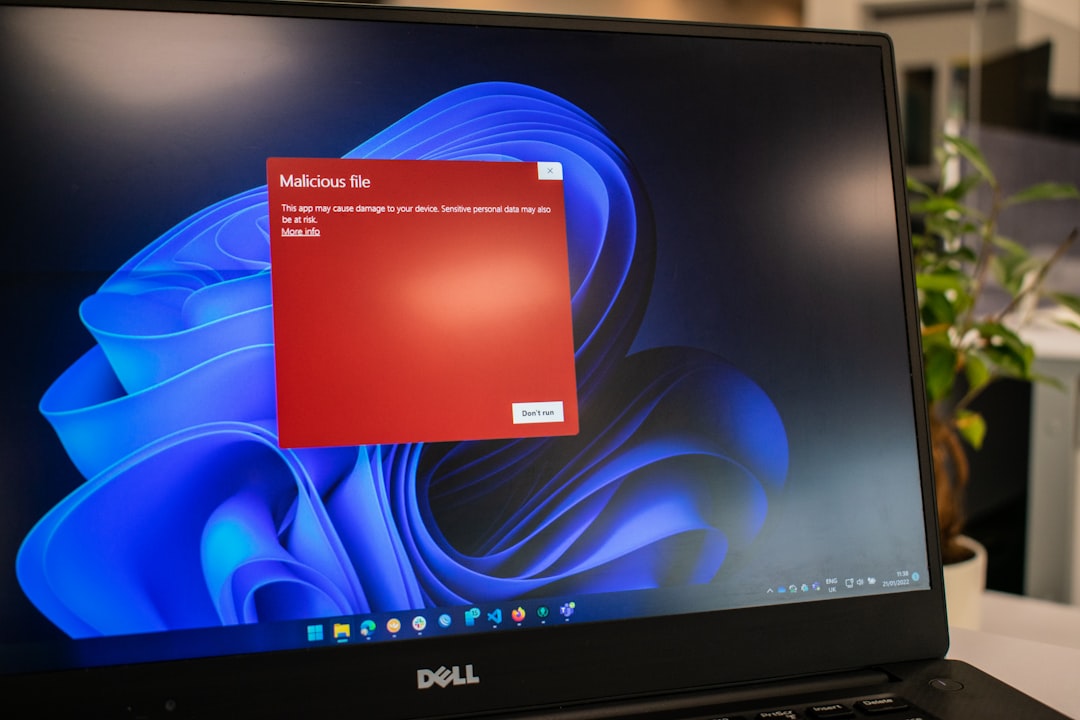
Removing malicious software may automatically resolve DLL-related issues.
6. Reset or Reinstall Windows (Last Resort)
If all else fails, a Windows reset may be necessary. Windows offers an option to reset the operating system while keeping personal files.
This method should only be considered after exhausting other repair methods, as it can remove installed applications and require reconfiguration.
How to Prevent DLL Errors in the Future
Preventative maintenance significantly reduces the likelihood of encountering system file issues.
- Keep Windows updated regularly.
- Avoid forced shutdowns during updates.
- Install reputable security software.
- Do not delete system files manually.
- Create periodic restore points.
Maintaining disciplined system habits ensures long-term reliability.
When to Seek Professional Assistance
If the Autopilot.dll error persists despite applying standard repair procedures, professional evaluation may be warranted. Persistent DLL errors could indicate deeper issues such as:
- Failing storage hardware
- Severe system corruption
- Enterprise policy conflicts in business-managed devices
In corporate environments, IT administrators should verify device enrollment configuration and group policies associated with Windows Autopilot.
Final Thoughts
An Autopilot.dll error can appear intimidating, but it is generally manageable through structured troubleshooting. Most cases stem from update interruptions, file corruption, or minor system inconsistencies rather than catastrophic failure.
By using built-in Windows repair tools such as SFC and DISM, avoiding risky third-party downloads, and ensuring proper system maintenance, users can restore stability without compromising security. Taking deliberate, methodical steps is the key to resolving this issue safely and protecting the integrity of your Windows environment.