


Use a cloud link for anything over 18 MB. Gmail officially allows attachments up to 25 MB, while Outlook limits depend on the account type: Outlook.com is often around 20 MB, and Microsoft 365 business accounts can be higher if the admin allows it. Gmail will automatically turn larger files into a Google Drive link, which is usually the smoother route anyway [source: Google].
TLDR: Gmail gives you a 25 MB attachment ceiling, while Outlook.com is usually tighter at about 20 MB. A 24 MB PDF may look safe in Gmail, but email encoding can inflate file size by roughly 33%, so it can still bounce or upload as a Drive link. If Sara in accounting needs to send a 31 MB invoice folder to five clients, the fastest fix is not compressing it three times; it is sharing a Google Drive or OneDrive link with proper permissions.
Gmail vs Outlook attachment limits at a glance
| Email service | Typical attachment limit | What happens with larger files? | Best workaround |
|---|---|---|---|
| Gmail | 25 MB total per email | Gmail inserts a Google Drive link | Google Drive sharing |
| Outlook.com | Usually about 20 MB | May block the message or suggest OneDrive | OneDrive sharing |
| Microsoft 365 Outlook | Varies by admin settings | Can be higher in business setups | OneDrive or SharePoint links |

Why the “25 MB” number can be misleading
Email attachments are not sent as clean, untouched files. They are encoded for transport. That encoding often adds about a third to the file size. So a file that says 24 MB on your desktop may become too large once wrapped inside an email message.
This is the part that annoys people. The file looks under the limit. You attach it. You wait. Then Gmail or Outlook says no, or the recipient’s server rejects it later. Honestly, it feels like losing a tiny office argument with a progress bar.
For practical use, treat these as safer limits:
- Gmail: keep direct attachments under 18–20 MB.
- Outlook.com: keep direct attachments under 15–18 MB.
- Business Outlook: ask your IT team, because the limit may be custom.
- External recipients: use cloud links, since their company may block large mail.
Gmail: what happens when your attachment is too large?
Gmail is fairly simple. You can attach files up to 25 MB total in one email. That includes all attachments combined, not each file. So two files of 14 MB each will exceed the limit.
If the attachment is larger than Gmail allows, Gmail usually uploads it to Google Drive and adds a link to the email instead. That is handy, but permissions can trip you up. If the recipient does not have access, they may need to request it. That adds friction, especially when sending to clients outside your company.
Before hitting send, check the sharing setting. For outside recipients, you may need to choose something like Anyone with the link can view. For sensitive files, avoid open links. Use restricted access and add the recipient’s email address directly.
Outlook: the limit depends on which Outlook you mean
Outlook is messier because the word can mean several things. It can mean the Outlook desktop app, Outlook on the web, Outlook.com, or a Microsoft 365 business mailbox. The app itself is not always the real limiter. The mail server is.
For personal Outlook.com accounts, the attachment cap is commonly around 20 MB. For Microsoft 365 business users, admins can set larger message limits. Exchange Online can support larger configured message sizes, with limits documented by Microsoft [source: Microsoft].
The catch is that your larger limit does not guarantee delivery. If your company allows 100 MB messages but the recipient’s company allows only 25 MB, your email can still fail. Expect to waste time on bounce messages if you send huge attachments the old way.
Google Drive vs OneDrive for large files
For large attachments, Gmail pushes you toward Google Drive. Outlook pushes you toward OneDrive or SharePoint. Both options are better than forcing a heavy file through email.
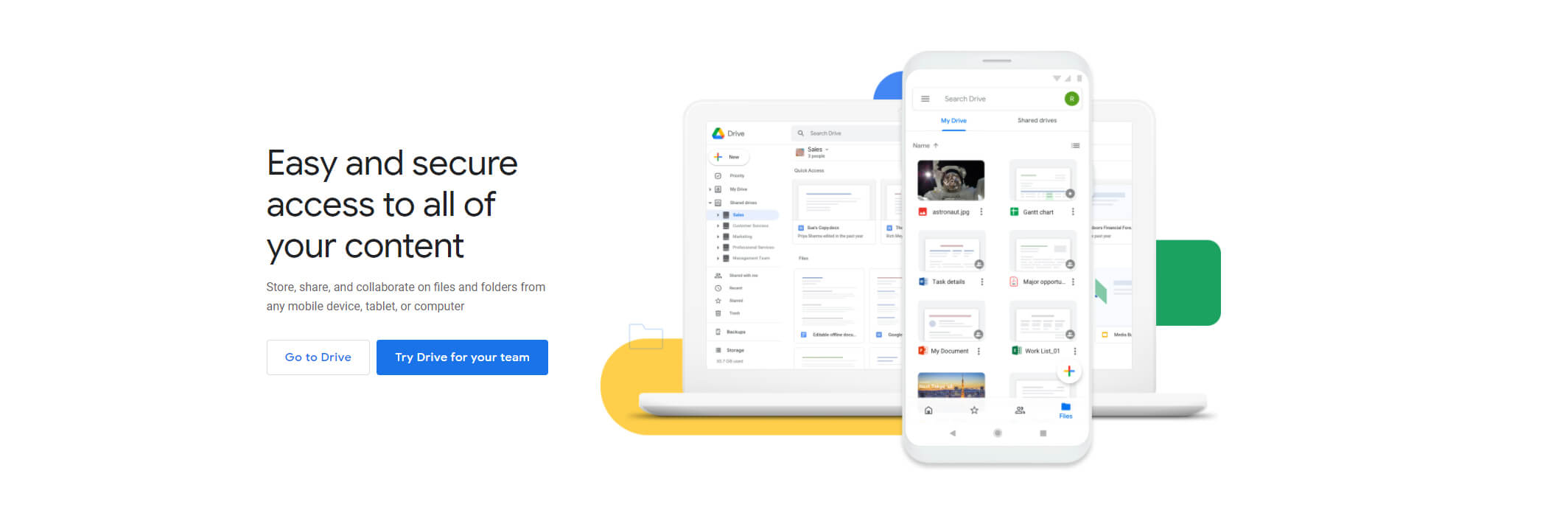
Here is how they compare in real use:
- Google Drive is excellent for Gmail users, freelancers, educators, and mixed personal accounts.
- OneDrive works best inside Microsoft 365 teams, especially when files are already in Word, Excel, or PowerPoint.
- SharePoint is better for company folders, shared departments, and controlled access.
- Direct attachments are best only for small, final files that do not need edits.
Cloud links also reduce mailbox clutter. Instead of sending a 22 MB file to ten people and creating ten heavy copies, you send one link. Everyone opens the same file. If you update it, they can see the latest version, depending on permissions.
When should you compress files?
Compression still helps, but it is not magic. A folder of text documents may shrink a lot. A folder of videos, JPEGs, PDFs, or design files may barely shrink at all. Many of those formats are already compressed.
Use ZIP files when you need to send many small files together. Do not expect a 60 MB video to become email-friendly just because you right-clicked and compressed it. It may drop to 58 MB. Great. Still rejected.
Best practices for sending large attachments
- Use links above 18 MB. This avoids encoding surprises.
- Name files clearly. Use names like Q4 invoice summary final.pdf, not final final 2.pdf.
- Check permissions before sending. Open the link in a private browser window if unsure.
- Set expiration dates for sensitive links when your platform allows it.
- Avoid sending confidential files as open links. Restricted access is safer.
- Tell recipients what to expect. Add one short line: The file is shared via OneDrive because it is too large for email.
Which is better for large attachments?
Gmail is simpler for casual oversized files because the Google Drive handoff feels automatic. You attach a file, Gmail sees the size, and it turns the file into a Drive link. For many users, that is enough.
Outlook is stronger in companies because OneDrive, SharePoint, permissions, and Microsoft 365 admin controls fit business workflows. The tradeoff is confusion. Two Outlook users can have very different sending limits because their accounts are configured differently.
If you only care about direct attachment size, Gmail usually wins against personal Outlook.com. If you care about business file control, Outlook with Microsoft 365 and OneDrive may be the better setup.
Quick decision guide
- Sending a 5 MB PDF? Attach it directly in Gmail or Outlook.
- Sending a 19 MB presentation? Gmail may handle it, but a link is safer.
- Sending a 35 MB video? Do not attach it. Use Drive or OneDrive.
- Sending files to a client? Use a cloud link and confirm permissions.
- Sending legal, payroll, or medical files? Use restricted access, not public links.

The practical answer is simple: email is a poor delivery truck for big files. Gmail gives you a little more room than Outlook.com, but both become clunky once you pass the high teens in megabytes. For anything large, valuable, or shared with several people, skip the attachment drama and send a controlled cloud link instead.