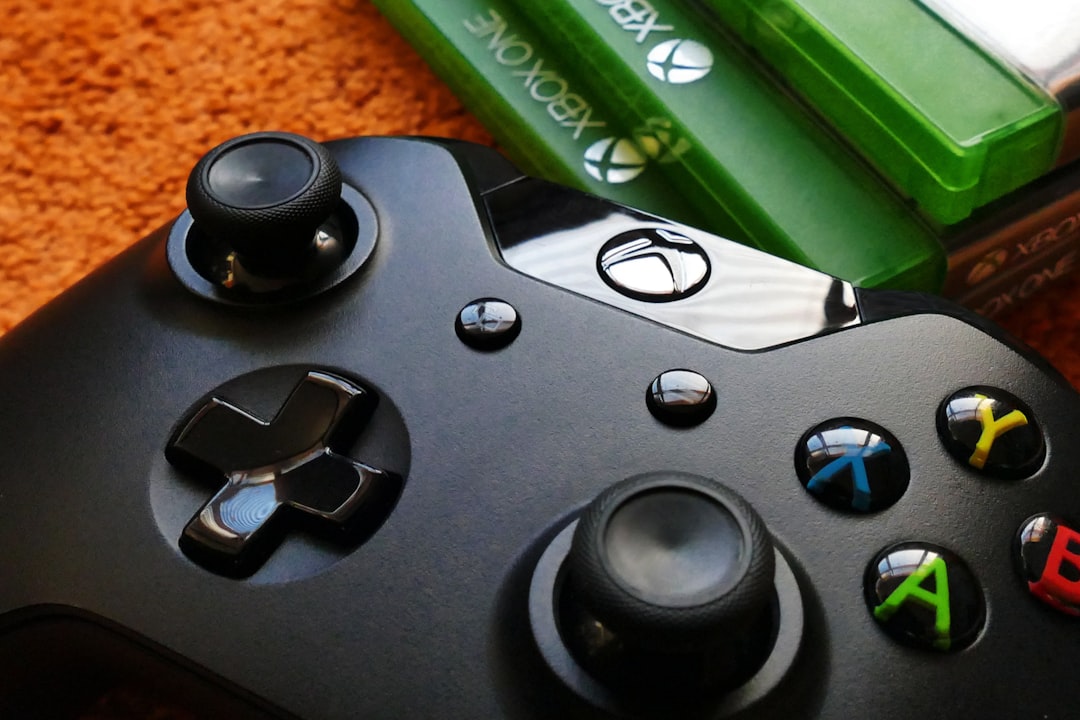


Change DNS on the Xbox itself if you only want the console affected. Change DNS on your router if you want every device at home to use the same DNS. On Xbox Series X, Series S, and Xbox One, the console path is Settings > General > Network settings > Advanced settings > DNS settings > Manual, according to Microsoft’s Xbox network setup guidance [source: Microsoft].
TLDR: Console DNS is the quick fix. Router DNS is the “set it once and forget it” option. For example, if your Xbox downloads feel slow at night, switching only the console to Cloudflare DNS, 1.1.1.1 and 1.0.0.1, takes about two minutes and affects nothing else. If you have five gaming devices at home, router DNS saves time because you avoid changing each device one by one.
Console DNS vs router DNS: the short answer
If your goal is better Xbox connectivity, faster domain lookups, or testing a different DNS provider, start with console settings. It is safer. It is easy to undo. It also keeps phones, laptops, smart TVs, and work devices untouched.
Use router configuration when you want the entire home network to use the same DNS. This is useful for families, shared apartments, or homes with several consoles. The catch is that router menus can be a mess. Some brands hide DNS under “Internet,” others under “WAN,” and some ISP routers block custom DNS completely. Annoying, but common.

Option 1: Change DNS directly on Xbox
This is the best choice for most players. It takes only a few steps and does not change the rest of your network.
- Press the Xbox button on your controller.
- Go to Profile & system.
- Open Settings.
- Select General.
- Choose Network settings.
- Open Advanced settings.
- Select DNS settings.
- Choose Manual.
- Enter your Primary DNS.
- Enter your Secondary DNS.
- Save, then restart the console if needed.
Common DNS choices include:
- Cloudflare: 1.1.1.1 and 1.0.0.1
- Google Public DNS: 8.8.8.8 and 8.8.4.4
- Quad9: 9.9.9.9 and 149.112.112.112
After changing DNS, run Test network connection and Test multiplayer connection on your Xbox. If downloads, party chat, or matchmaking feel worse, switch back to Automatic. No shame in that. DNS is not magic. Sometimes your ISP’s default DNS is already fine.
When console DNS makes sense
- You only care about your Xbox.
- You want to test DNS without bothering anyone else.
- You share Wi Fi with roommates or family.
- Your router admin page is locked by your ISP.
- You want the fastest rollback if something breaks.
Honestly, it feels silly that such a useful setting is buried so deep in the Xbox menus. Expect to spend a few extra seconds clicking through screens before you reach the DNS section.
Option 2: Change DNS on your router
Router DNS changes apply to devices that get their network settings from the router. That usually includes consoles, phones, tablets, PCs, streaming boxes, and smart TVs. If you want one clean rule for the whole house, this is the better route.
The steps vary by brand, but the usual process looks like this:
- Open a browser on a device connected to your home network.
- Enter your router address, often 192.168.0.1 or 192.168.1.1.
- Sign in with the router admin login.
- Find Internet, WAN, or DHCP settings.
- Look for DNS server fields.
- Enter the primary and secondary DNS addresses.
- Save the settings.
- Restart the router and Xbox.

Be careful here. A wrong router setting can knock devices offline until you fix it. Take a photo of the old settings before changing anything. That one small habit can save you ten minutes of grumbling later.
When router DNS makes sense
- You have more than one Xbox or gaming device.
- You want the same DNS for the whole home.
- You manage the network for kids or guests.
- You use a DNS provider with filtering features.
- You are comfortable signing in to your router.
Router DNS can also help if you use parental controls through a DNS provider. Some services block adult sites, malware domains, or gambling sites at the DNS level. That said, DNS filtering is not a full security system. It is only one layer.
Will changing DNS lower ping?
Usually, not by much. DNS helps your Xbox find server addresses. It does not change the physical path between your home and the game server after the connection is made. If your ping is 80 ms because the server is far away, DNS will not turn it into 20 ms.
Still, DNS can help with slow sign-ins, store loading, update checks, and some connection delays. If your ISP DNS is having a bad day, a public DNS service may feel snappier. The improvement can be small, but small wins matter when you just want to play.
Which method should you choose?
Pick Xbox DNS settings if you want speed, control, and low risk. Pick router DNS if you want one setting for the whole house. For most players, the best plan is simple: test DNS on the Xbox first. If it works well for a week, then consider putting the same DNS on the router.

If things break, go back to Automatic on the Xbox or restore the router’s old DNS values. DNS changes are easy to reverse, and that makes them worth trying. Just do not expect miracles. A better DNS can clean up small network annoyances, but it will not fix weak Wi Fi, overloaded routers, or a slow internet plan.