


Natural-sounding voice narration can instantly elevate a video, turning simple visuals into a compelling story. With the growing power of AI-driven text-to-speech tools, CapCut Desktop has become a favorite platform for creators who want professional narration without hiring voice actors or investing in expensive recording gear. When used correctly, CapCut’s text-to-speech features allow you to generate expressive, human-like voices that fit seamlessly into any type of content, from YouTube explainers to social media ads.
TLDR: CapCut Desktop’s text-to-speech tools can produce natural, engaging voice narration when you carefully select voices, optimize your script, and fine-tune pacing and tone. Small adjustments like punctuation, emphasis, and audio cleanup make a big difference. Pairing smart narration with visuals and sound design results in videos that feel professional and authentic.
Understanding CapCut Desktop Text-to-Speech Basics
Before aiming for natural narration, it is essential to understand how CapCut Desktop’s text-to-speech (TTS) system works. At its core, the tool converts written text into spoken audio using AI voice models trained on real human speech patterns. These models interpret punctuation, sentence structure, and word flow to produce realistic intonation.
To access TTS in CapCut Desktop, you typically add a text layer, input your script, and then select the Text-to-Speech option. From there, you can choose from multiple voice styles and languages. Each voice has its own rhythm, pitch, and emotional range, making voice selection one of the most important steps in the entire process.
Image not found in postmetaChoosing the Right Voice for Natural Sounding Narration
The biggest factor in how “human” your narration feels is the voice you choose. CapCut Desktop offers a range of AI voices that vary in gender, tone, accent, and energy. A natural voice is not always the most neutral one; it is the voice that best matches your video’s purpose and audience.
- Educational videos: Calm, steady voices with clear enunciation work best.
- Marketing and ads: Energetic, confident voices add persuasion and excitement.
- Storytelling or reels: Warm, expressive voices create emotional connection.
Take time to preview multiple voices using short test sentences. Listening carefully helps you identify subtle differences in pacing and tone that may not be obvious from voice labels alone.
Writing Scripts That Sound Natural When Spoken
Even the most advanced AI voice will sound robotic if the script is poorly written. Natural narration always starts with natural writing. Instead of writing like a blog or essay, aim to write the way people actually speak.
Shorter sentences often work better than long, complex ones. Use contractions such as “it’s” or “you’re” to maintain conversational flow. Avoid overly technical language unless your audience expects it.
- Read your script out loud before generating audio.
- Break long thoughts into two sentences.
- Use commas to guide pauses and breathing.
CapCut’s TTS engine responds well to punctuation. Strategic commas, ellipses, and line breaks can make the AI pause naturally instead of rushing through the text.
Using Punctuation and Emphasis for Better Delivery
Punctuation is more than grammar; it is performance direction for AI narration. A comma can create a soft pause, while a period signals a full stop. Question marks change the intonation, making speech sound more expressive.
You can also simulate emphasis by slightly rephrasing sentences. For example, instead of writing “This tool is amazing”, try “This tool is truly amazing” to encourage stronger vocal stress.
Some creators capitalize words to suggest emphasis, but moderation is key. Overuse can cause unnatural stress patterns that break immersion.

Adjusting Speed, Pitch, and Timing
CapCut Desktop’s text-to-speech controls often include speed and sometimes pitch adjustment, depending on the voice selection. These options are extremely useful for fine-tuning narration.
- Speed: Slightly slower narration feels more natural and easier to follow.
- Pitch: Subtle pitch adjustments can add warmth or seriousness.
- Timing: Align narration carefully with visual cuts and animations.
If your video includes captions or fast visual transitions, consider slowing the narration slightly so viewers can process both audio and visuals comfortably.
Breaking Long Scripts into Multiple Voice Clips
One advanced technique for improving natural flow is splitting long scripts into multiple shorter TTS clips. Instead of generating a single audio file, divide the narration by sentences or paragraphs.
This approach offers several advantages:
- Easier replacement of specific lines without redoing everything.
- Better control over pacing and pauses.
- More flexible synchronization with visuals.
After generating multiple clips, arrange them on the timeline and add small gaps or transitions between them. This mimics natural breathing and makes the narration sound less machine-generated.
Enhancing AI Narration with Audio Effects
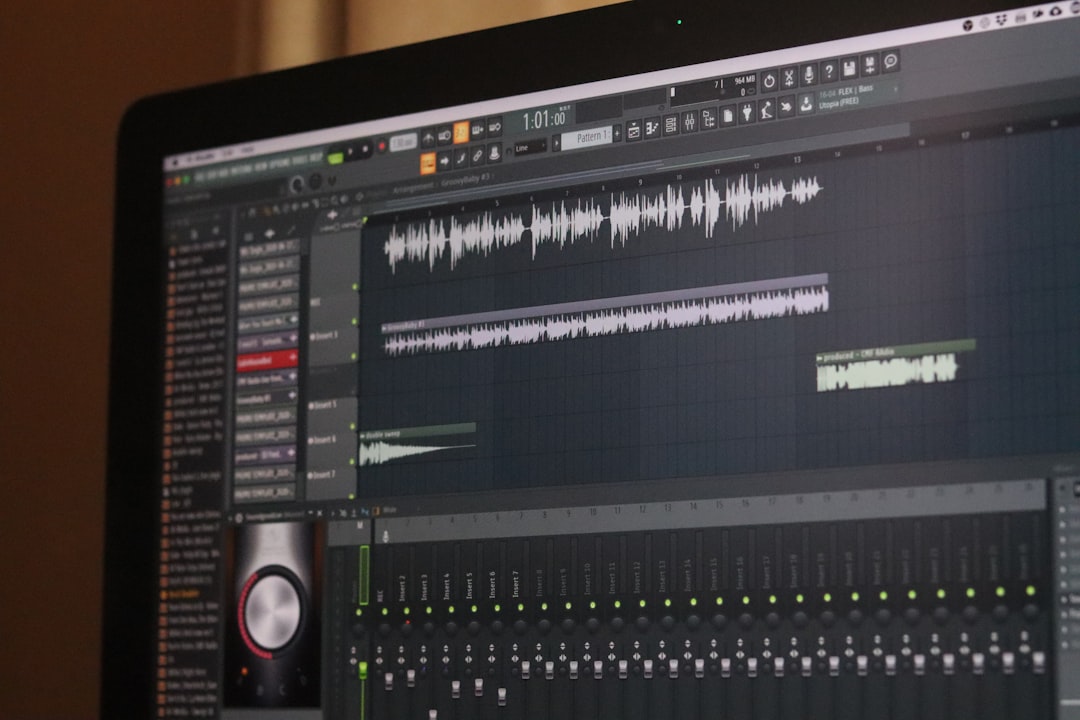
Raw AI voice audio can sound flat without post-processing. CapCut Desktop includes built-in audio effects that help narration blend into your video naturally.
Light equalization can remove harsh frequencies, while subtle compression evens out volume. In some cases, adding a very small amount of room reverb can make the voice feel more grounded and human.
- Use noise reduction sparingly.
- Avoid heavy echo or distortion.
- Maintain consistent volume across clips.
Matching Narration Style with Visual Storytelling
Natural voice narration is not just about sound; it must align with what viewers see on screen. If visuals are fast-paced and energetic, slow narration will feel disconnected. Likewise, calm visuals paired with overly energetic speech can be jarring.
Preview your video multiple times with fresh ears. Ask yourself whether the voice feels like a guide that belongs in the scene or an external overlay. Small timing shifts, such as starting narration half a second later, can significantly improve perceived quality.
Common Mistakes to Avoid
Even experienced creators make mistakes when using text-to-speech. Being aware of these pitfalls helps you avoid unnatural results.
- Overloading the script with information.
- Ignoring punctuation and formatting.
- Using one voice style for every type of content.
- Skipping audio polishing entirely.
Remember, AI narration is a creative tool. Treat it like a virtual voice actor that needs direction and refinement.
Final Thoughts on Creating Human Like AI Narration
CapCut Desktop’s text-to-speech AI tools offer an accessible and powerful way to generate natural voice narration when used thoughtfully. By selecting the right voice, crafting conversational scripts, adjusting delivery, and enhancing audio quality, you can achieve results that rival traditional voiceovers.
As AI voices continue to improve, the gap between synthetic and human narration grows smaller. Creators who master these techniques today will be well positioned to produce engaging, professional videos faster and more efficiently than ever before.