


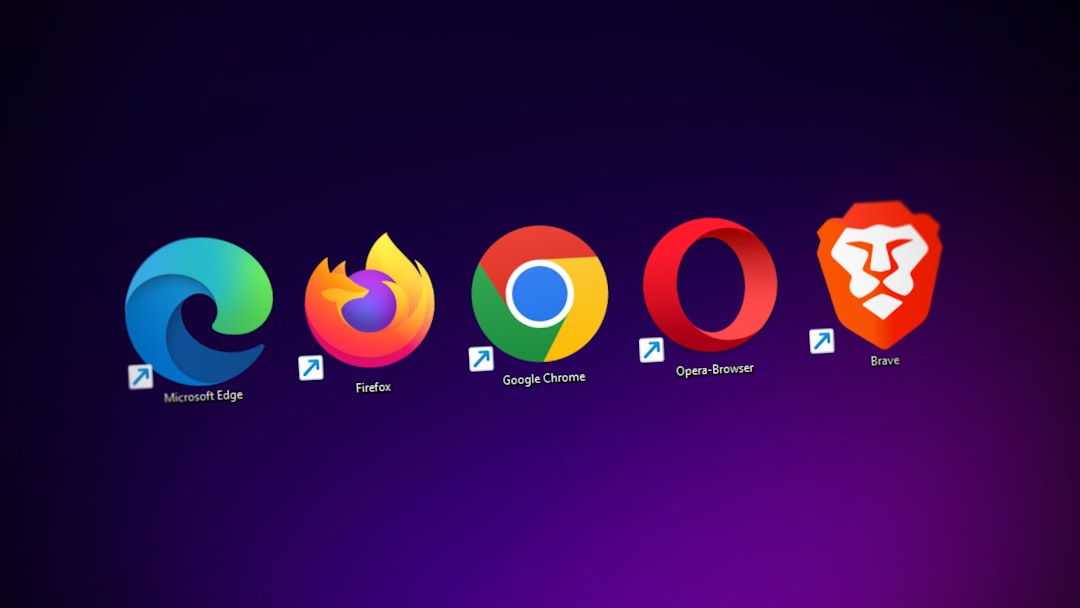
For most people, Chrome is still the safest default, Edge is the best business pick on Windows, and Firefox is the strongest choice if privacy and independent web standards matter. The address bar question, “type a web address or search Google,” sounds simple, but it affects speed, privacy, research accuracy, bookmarks, extensions, password handling, and how much junk gets in your way. Chrome holds about 65% of global browser market share, which helps explain why so many sites are built and tested around it [source: StatCounter].
TLDR: Choose Chrome if you want the broadest compatibility and use Google services all day. Choose Microsoft Edge if your company runs on Windows, Microsoft 365, Teams, SharePoint, and Entra ID. Choose Firefox if you want stronger privacy defaults and less dependence on Google’s browser engine. For example, a 20-person research team doing 40 searches each per workday could run about 16,000 searches per month, so even a small improvement in tab handling, citation capture, or login flow can save real time.
What the address bar really does
The modern address bar is not just a place to type example.com. It is a command line for the web. It handles URLs, search queries, browser history, bookmarks, shortcuts, open tabs, site permissions, and sometimes AI summaries.
That makes the default browser a daily work tool, not a cosmetic choice. If the browser guesses wrong, autocompletes the wrong internal site, or pushes ads into results, you lose trust. It drives me crazy that one bad suggestion can send you to an outdated staging page or a login loop that takes 30 seconds to escape.

Chrome: best for compatibility and Google workflows
Chrome is the practical choice for users who live in Gmail, Google Docs, Google Drive, Google Ads, Google Analytics, Looker Studio, and YouTube. Its biggest strength is simple: websites usually work. Developers test in Chrome because so many users have it installed.
For everyday browsing, Chrome feels quick and familiar. Search suggestions are good. Password sync is smooth. Profiles make it easy to separate work and personal accounts. The extension store is large, which matters for researchers using citation managers, SEO tools, grammar checkers, screen capture tools, and productivity add-ons.
For business research, Chrome is excellent when the task involves:
- Google Workspace collaboration.
- Marketing research with Google search, YouTube, Ads, and Analytics.
- Extension-heavy work, such as SEO audits or sales prospecting.
- Cross-device syncing between Android, Windows, macOS, and ChromeOS.
The downside is privacy and resource use. Chrome can be memory hungry, especially with dozens of tabs, video calls, and heavy web apps. Honestly, it feels like Chrome asks for more system resources than it should when all you did was leave five dashboards open over lunch.
Chrome also comes from an advertising company. That does not make it unsafe, but it does mean privacy-conscious teams should review settings with care. Google’s Safe Browsing is still a major security strength, especially against phishing and malicious sites [source: Google].
Firefox: best for privacy and independent research
Firefox is the strongest option for users who want a serious browser outside the Google and Microsoft ecosystems. It uses its own browser engine, which matters for the health of the open web. If every major browser behaves like Chrome under the hood, web standards become too dependent on one vendor.
Firefox has strong privacy settings out of the box. Enhanced Tracking Protection blocks many trackers by default. Its container tabs are useful for separating client accounts, social media logins, ad platforms, and research sessions. That is a practical win for analysts who need to compare search results without every site mixing signals from every other login.
Firefox is a good choice for:
- Privacy-focused everyday use.
- Academic or investigative research.
- Keeping work identities separate through containers.
- Testing how sites behave outside Chromium-based browsers.
Its main weakness is compatibility. Most sites work fine, but a few business tools still behave better in Chrome or Edge. Some browser extensions also arrive later or have fewer features. Expect to waste time on the occasional stubborn dashboard that was clearly tested only in Chrome.
Still, Firefox deserves a place in any serious research setup. It is especially useful as a second browser for checking search neutrality, clearing assumptions, and separating logged-in accounts from clean research sessions. Mozilla’s privacy tools, including tracker blocking, are documented clearly [source: Mozilla].
Microsoft Edge: best for Windows and Microsoft 365 offices
Microsoft Edge is no longer the browser people open only to download another browser. It is fast, stable, and based on Chromium, so site compatibility is close to Chrome. For Windows-based businesses, it may be the most efficient option.
Edge works well with Microsoft 365, Outlook, Teams, SharePoint, OneDrive, Defender, and enterprise identity tools. Admins can manage policies through Microsoft systems. That matters in regulated industries, schools, finance teams, healthcare offices, and any company that needs consistent security settings.
Edge is strong for business research because it offers:
- Vertical tabs for large research sessions.
- Collections for saving pages, notes, and sources.
- Microsoft 365 integration for work accounts.
- Enterprise controls for IT teams.
- Good performance on many Windows machines.
The annoying part is the promotion. Edge can feel pushy. Search defaults, shopping prompts, sidebars, rewards, and AI features may appear when you only want a clean page and reliable results. In a company setting, IT can control much of this. For solo users, the settings cleanup takes a few minutes but is worth doing.
Search quality: Google, Bing, and alternatives
The phrase “search Google” is common because Google remains the default habit for many users. But the browser and the search engine are separate choices. You can use Google in Edge. You can use Bing in Chrome. You can use DuckDuckGo in Firefox.
For business research, Google is still strong for broad web discovery, technical queries, local data, product comparisons, and current news. Bing can be useful for Microsoft-linked work, image search, and some AI-assisted summaries. Privacy search engines help when you do not want ads and personalization to shape every query.
A good research habit is to use at least two search engines for high-value questions. If you are checking a vendor, legal issue, market claim, or competitor update, compare results. One search engine can miss a useful PDF, government page, or industry report.
Security and privacy basics
All three browsers are safe enough for normal users if updated. The bigger risks are phishing, weak passwords, malicious extensions, fake downloads, and careless approval of permissions.
Use these rules:
- Keep automatic updates on.
- Use a password manager, either built in or third party.
- Review extensions monthly. Remove anything unused.
- Check site permissions for camera, microphone, location, and notifications.
- Turn on enhanced protection where it fits your privacy needs.
For companies, browser choice should match policy. A browser is part of the security stack. It touches identity, data loss, downloads, password storage, and endpoint controls.

Best choice by user type
- General home user: Chrome if you use Google services, Edge if you use Windows and want solid speed, Firefox if privacy is your top concern.
- Student or academic researcher: Firefox for clean research sessions, plus Chrome when a site requires it.
- Small business owner: Edge for Microsoft 365 shops, Chrome for Google Workspace shops.
- Marketing team: Chrome is usually easiest because many tools are built around Google accounts and Chrome extensions.
- IT-managed company: Edge is often the most practical on Windows due to policy control and Microsoft integration.
Final recommendation
If you want one answer, use Chrome for the broadest everyday compatibility. Use Edge if your work life runs through Microsoft. Use Firefox when privacy, account separation, and independent browsing matter most.
The smartest setup is not one browser forever. Use a primary browser for daily work and a secondary browser for clean research, testing, and account separation. That small change reduces confusion, protects privacy, and makes “type a web address or search Google” feel less like a gamble and more like a controlled workflow.